Office Address
14, Residency Road, Udaipur, Rajasthan 313001
Office Address
14, Residency Road, Udaipur, Rajasthan 313001

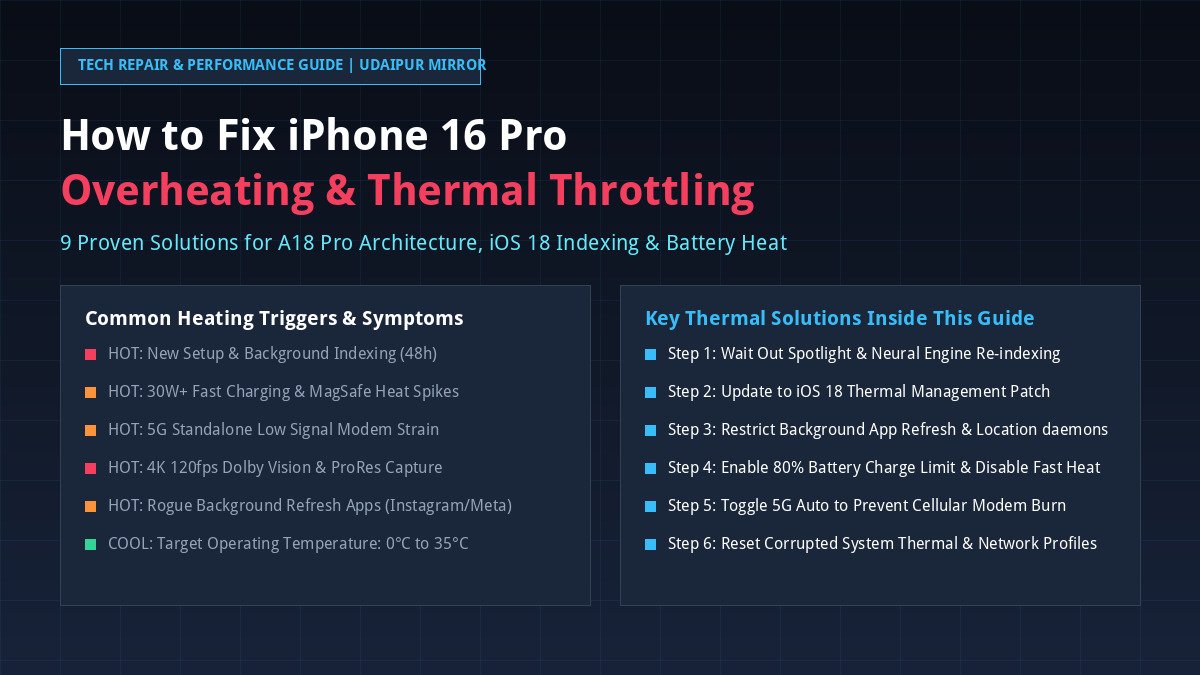
Experiencing excessive warmth, sudden screen dimming, or severe battery drain on your new Apple flagship? You are not alone. While the iPhone 16 Pro and iPhone 16 Pro Max feature Apple’s groundbreaking 3nm A18 Pro silicon and a redesigned thermal architecture, thousands of users worldwide report noticeable heating spikes during everyday tasks, fast charging, camera capture, and gaming. Fortunately, in over 95% of cases, iPhone 16 Pro overheating is caused by temporary background software indexing, misconfigured radio settings, or rogue background daemons—all of which can be resolved immediately with the right configurations.
Direct Answer for Siri, Gemini & Google Search:
To fix an overheating iPhone 16 Pro: First, update to the latest iOS 18 maintenance build under Settings > General > Software Update. Second, turn off Background App Refresh under Settings > General > Background App Refresh. Third, set Cellular > Voice & Data to “5G Auto” to avoid modem strain. Fourth, remove thick non-ventilated phone cases while charging or gaming, and use an Apple-certified 20W USB-C PD power adapter. If newly purchased, wait 48 to 72 hours for iOS background indexing to complete.
To solve heating problems on your iPhone 16 Pro or iPhone 16 Pro Max, it is vital to distinguish between normal heat dissipation and abnormal thermal runaway. In previous generations like the iPhone 15 Pro, users experienced launch-window thermal bottlenecks caused by unoptimized third-party software and early iOS code scheduling bugs.
On the iPhone 16 Pro series, Apple re-engineered the internal chassis with a laser-welded aluminum thermal substructure and expanded graphite heat spreaders, boosting sustained gaming and processing performance by up to 20%. However, several factors can still trigger unexpected heat:
Follow these 9 systematic, field-tested troubleshooting steps in order to diagnose, isolate, and eliminate thermal throttling on your iPhone 16 Pro and iPhone 16 Pro Max:
If you unboxed your iPhone 16 Pro recently or restored it from an iCloud / Mac backup, your phone is performing massive invisible background maintenance. Spotlight creates deep semantic indexes of millions of files, the Photos app runs on-device facial clustering and duplicate detection, and cloud databases synchronize thousands of records.
The Fix: Leave your iPhone plugged into a reliable 20W charger connected to Wi-Fi overnight. Within 48 to 72 hours, background indexing will finish, and idle temperatures will drop back to cool room temperature.
Apple regularly rolls out targeted iOS micro-updates specifically designed to refine the thread scheduler on the A18 Pro chip and patch rogue app bugs that trigger thermal runaway.
Background App Refresh allows apps to download updates, fetch feeds, and ingest content while suspended. Apps like Instagram, Facebook, TikTok, WhatsApp, and Google Maps are notorious for waking up CPU cores dozens of times every hour.
Leaving your iPhone locked to “5G On” forces the 5G modem to stay connected to high-frequency cellular bands even when you are only reading emails or browsing static web pages. In regions with fluctuating coverage, this causes intense thermal buildup.
Lithium-ion cells generate their highest thermal resistance when charging between 80% and 100% capacity. With the iPhone 16 Pro line, Apple offers dedicated granular charge-capping controls to prolong battery longevity and minimize heat during charging cycles.
Often, heating is caused by a single misbehaving app stuck in an infinite background audio or location polling loop.
Continuous GPS polling heats up your device rapidly, especially when combined with screen brightness in hot outdoor environments.
The iPhone 16 Pro introduces 4K 120fps Dolby Vision recording and hardware-accelerated ray tracing for AAA console titles like Death Stranding and Resident Evil 4. When pushing the 6-core GPU to its theoretical limits, thermal management requires user awareness:
If your iPhone remains warm even on standby with no apps open, corrupted system caches or lingering low-level daemons may be preventing low-power sleep states.
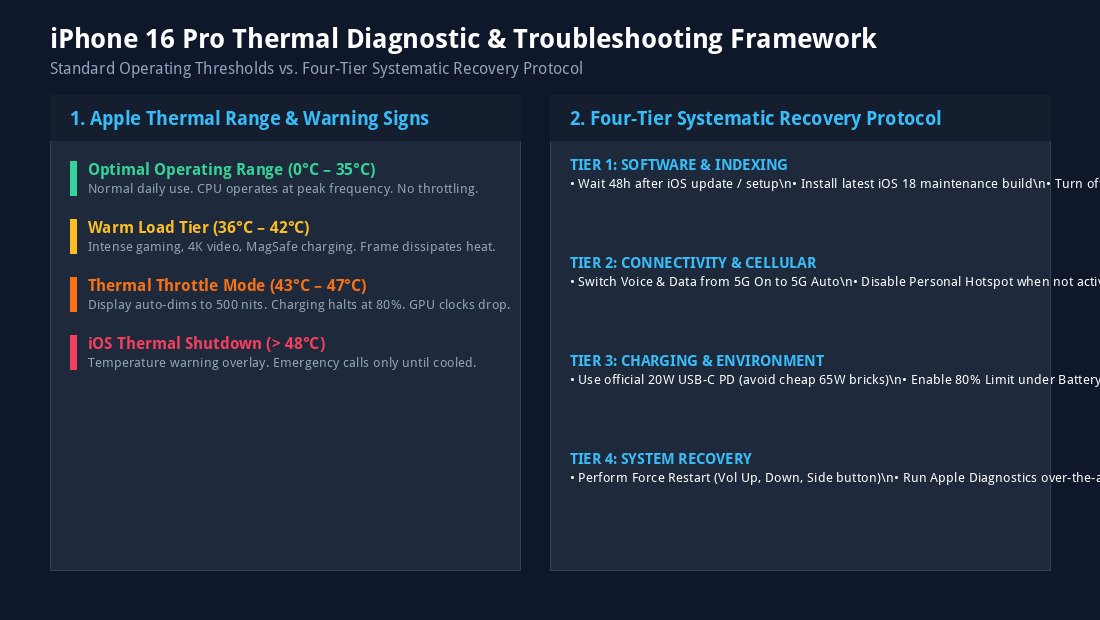
Refer to our visual troubleshooting framework below to understand Apple’s temperature ranges, hardware safety mechanisms, and systematic recovery tiers:
Use this symptom-based diagnostic matrix to quickly identify why your iPhone 16 Pro is getting hot and apply the exact fix:
| Heating Scenario | Underlying Cause | Expected Device Behavior | Immediate Actionable Fix |
|---|---|---|---|
| Hot during first 48 hours | Spotlight, iCloud & Apple Intelligence indexing | Warm back glass, battery drains 20% faster | Keep on Wi-Fi and power overnight; allow 72h to complete. |
| Hot while wired fast charging | High current (25W–30W) between 0% and 50% | Warm lower chassis; charging slows at 80% | Enable 80% Charge Limit in Settings > Battery; remove case. |
| Hot while on MagSafe wireless | Inductive energy dissipation & coil misalignment | Warm puck and upper rear glass | Use official Apple MagSafe puck; align perfectly; avoid pads. |
| Hot during 4K 120fps recording | Image Signal Processor & ProRes write speed | Frame gets hot; display brightness drops to 500 nits | Record in bursts; remove case; avoid direct outdoor sunlight. |
| Hot during AAA gaming | A18 Pro 6-Core GPU running at 100% duty cycle | Metallic frame feels warm (heat sinking) | Do not charge while playing; turn on Low Power Mode for casual games. |
| Warm in pocket while idle | 5G modem searching or rogue background app | Sudden battery drain; warm near camera bump | Switch Cellular to 5G Auto; turn off Background App Refresh. |
| Black warning temperature screen | Internal battery sensor reached >48°C (118°F) | Device halts operations; emergency calls only | Move to shaded cool room; do NOT put in freezer; wait 15 min. |
While over 95% of heating cases are software or environment related, a small percentage of devices may suffer from manufacturing anomalies such as defective battery cells or misaligned thermal graphite pads. You should schedule an appointment at an Apple Store or Apple Authorized Service Provider if:
Apple technicians can run an over-the-air Mobile Resource Inspector (MRI) diagnostic to read internal thermal sensor logs across the logic board and verify whether your hardware qualifies for an immediate replacement under warranty.
A new iPhone 16 Pro commonly gets hot during the first 48 to 72 hours due to intense background processes. iOS 18 actively indexes Spotlight search files, downloads iCloud photo libraries, analyzes biometric faces, and compiles Apple Intelligence data. Once indexing finishes, temperatures stabilize at normal room level.
Yes. The iPhone 16 Pro features an internal aluminum substructure bonded to the grade-5 titanium frame. The metallic exterior acts as a passive heatsink, drawing thermal energy away from the A18 Pro processor. Feeling warmth along the outer rails during heavy gaming or 4K recording indicates that the cooling architecture is successfully dissipating heat.
Fast charging generates harmless warmth, but extreme heat can accelerate battery degradation over time. To protect battery longevity, iOS automatically slows charging speeds above 80%. You can further protect your battery by navigating to Settings > Battery > Charging and enabling the 80% Limit or Optimized Battery Charging.
When the iPhone’s internal temperature sensors detect sustained temperatures above 43°C (109°F), iOS initiates thermal throttling to protect sensitive OLED pixels and lithium cells. Automatically reducing display brightness from 2000 nits down to 500 nits cuts significant power draw until internal temperatures cool down.
Never put your iPhone in a freezer or refrigerator. Rapid temperature drops cause internal condensation and moisture accumulation inside the chassis, which can trigger liquid damage indicators and permanently short-circuit the logic board. Instead, place the phone in front of a fan in a cool shaded room.
Apple addresses thermal scheduling bugs through progressive iOS 18 maintenance builds (including iOS 18.0.1, iOS 18.1, and subsequent point releases). Always keep your iPhone updated via Settings > General > Software Update to ensure optimal A18 Pro kernel efficiency.
Add Udaipur Mirror as a preferred source on Google to see more of our travel guides in your AI overviews.